Anti Recoil guide
Tame your weapon's recoil on keyboard, mouse or controller — power, weapon profiles and per-weapon tuning.
How Do I Turn Anti Recoil On & Off?
- 1
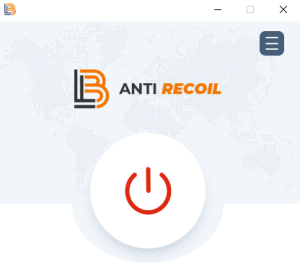
You can turn Anti Recoil on and off by pressing the power button on the app.
- 2
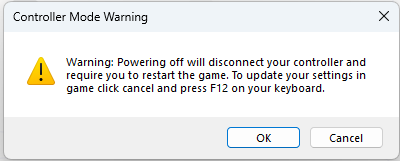
If you are using controller mode and turn the app off mid game, you will need to close the game, start the app, then open the game again. You do not need to turn the app off and on to update your settings — pressing F12 will do this automatically. The following message will appear to notify you of this if you try to turn the app off in controller mode.
How Do I Use My Controller?
- 1
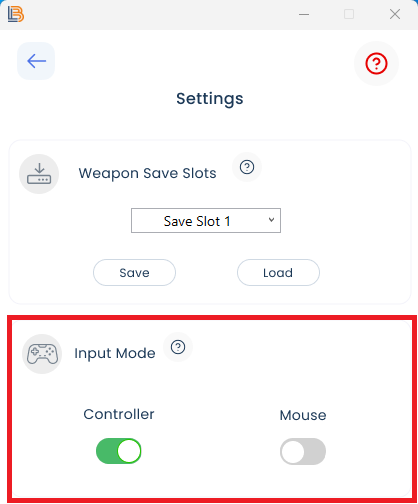
To use your controller with Anti Recoil, first connect your controller to your PC then navigate to the Settings section in the top right-hand corner of the application. Then under Input Mode change the selection from Mouse to Controller.
- 2
Make sure your in-game aiming input device is set to Controller.

How Do I Reduce My Recoil?
Adjusting the horizontal and vertical sliders within the app will affect how much your gun pulls up or to the side when firing.
- 1
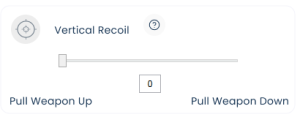
Vertical — the vertical slider can be moved left or right to adjust how much the weapon pulls up. The more you move the slider to the right, the more aggressively the gun will pull down to counteract its normal recoil pattern. You can also enter a value in the box below the slider for finer adjustments.
- 2
Horizontal — the horizontal slider can be moved left or right to stop your gun from drifting to one side when shooting. Moving the slider to the right will stop the weapon from firing bullets to the right, allowing you to keep them in the centre. Moving the slider to the left will stop the weapon firing bullets to the left. Keeping the slider in the centre will result in no changes to the left or right weapon pull. You can also enter a value in the box below the slider for finer adjustments.
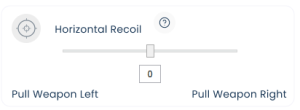
- 3
Once you have set your sliders, simply press the F12 button on your keyboard to update the slider positions. Please note, every time the values are adjusted you must press F12 for the changes to take effect.
How Do I Use Primary & Secondary Weapon Profiles?
- 1
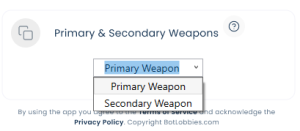
You can set different values for primary and secondary weapons that you use in game. By default the primary weapon configuration is selected. To change to the secondary weapon, simply drop down the Primary & Secondary Weapons box.
- 2
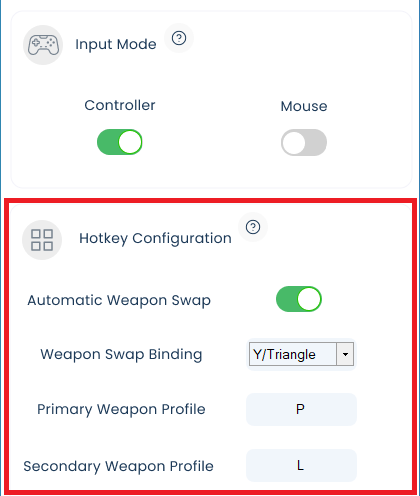
By selecting the secondary weapon from the drop-down menu, you can then set values for your in-game secondary weapon. To ensure the primary and secondary anti-recoil values are loaded in game correctly, you must configure your weapon swap button. To do this, enter the application's settings and either enable or disable automatic weapon swap. The automatic weapon swap feature will load the primary and secondary weapon values upon you switching weapon in game. To enable this, it is important you set your weapon swap binding button — this must match your weapon swap button in game.
- 3
For example, in Call of Duty the default mouse weapon swap button is the mouse wheel, and on controller it is the Y or Triangle button. In the weapon swap binding field you would enter "MW" for mouse wheel on mouse, and choose the required buttons for controller.
How Do I Reset My Profile Back to Primary Weapon?
- 1
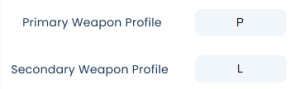
If your weapon profiles become out of sync — for example if you get killed in game with your secondary weapon and then respawn with your primary — you can easily switch the profile back to primary in game. When using mouse, you can set your preferred primary and secondary hotkey, which when pressed load the desired weapon profile. In the example below, pressing P on the keyboard will load the primary weapon values and pressing L will load the secondary weapon values.
- 2
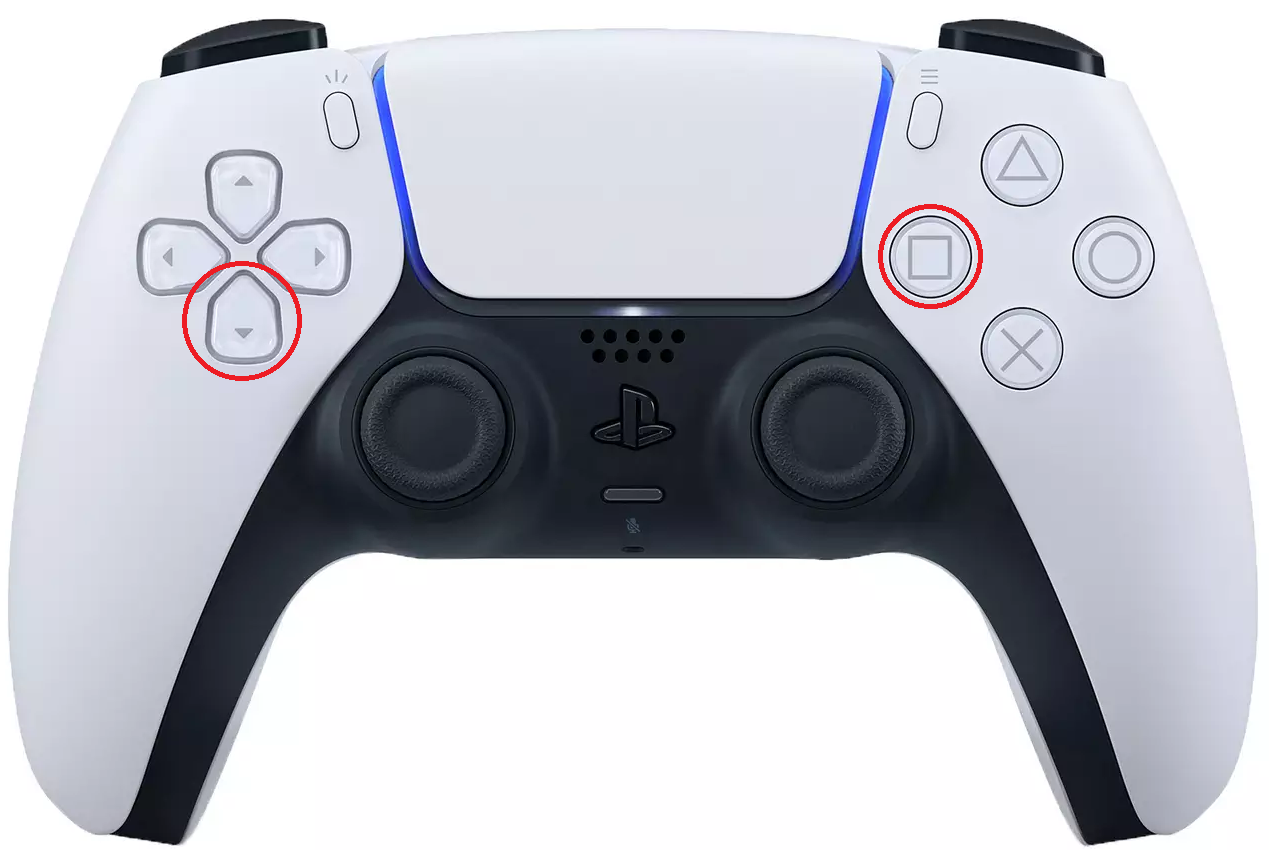
When using controller, you can reset the profile back to primary by pressing Square + Down D-Pad on PS4/5 controllers or X + Down D-Pad on Xbox controllers.
How Do the Save & Load Slots Work?
- 1
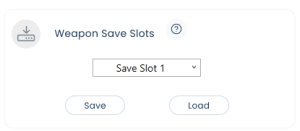
You can save your settings to one of the three available save slots by simply selecting the required slot from the drop-down and clicking the Save button.
- 2
To load your saved settings, select the save slot from the drop-down box and click the Load button. Once you have loaded your saved settings, click the Power On button. Updating your saved slot settings with F12 whilst the app is on will not load new saved settings.
My Anti Recoil Is Causing an Issue With My Weapon
- 1
If you're experiencing issues with the Anti Recoil, simply click the Troubleshoot button and then restart the application. This will default Anti Recoil to its original configuration.
Open a ticket and the team will get you sorted.