Eazy Mapper guide
Remap your controller and fine-tune sensitivity, dead zones and ADS for Eazy Mapper.
Watch the full walkthrough below, then follow the steps to get Eazy Mapper set up.
Quick Start
To use Eazy Mapper perform the following. We highly recommend watching the installation video however.
- 1
Start the Eazy Mapper application and power it on.
- 2
Open Call of Duty and then enter the game's Settings.
- 3
Under Mouse settings, change your Aiming Input to Controller.
- 4
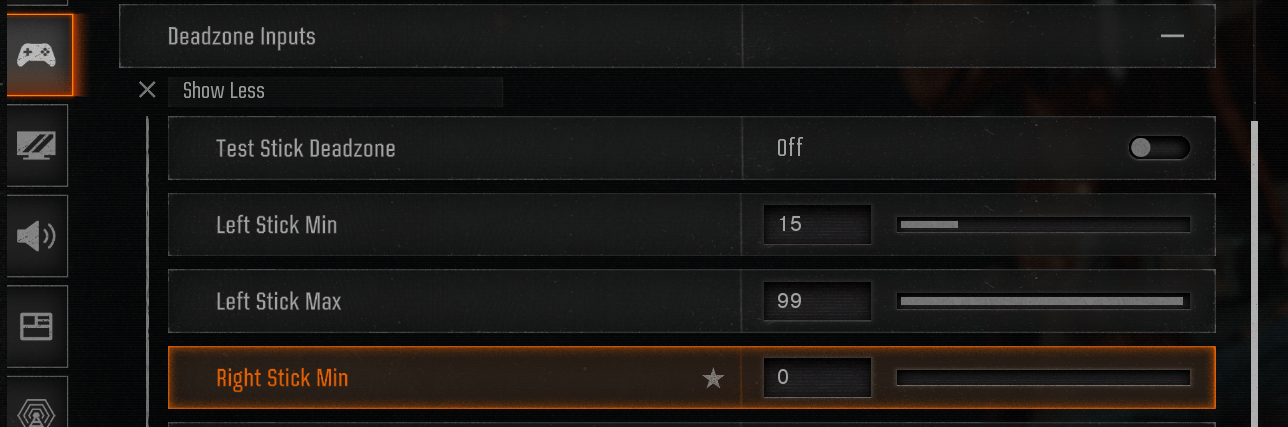
Under the Controller Settings, ensure you set your Right Stick Min dead zone to 0. This is extremely important.
- 5
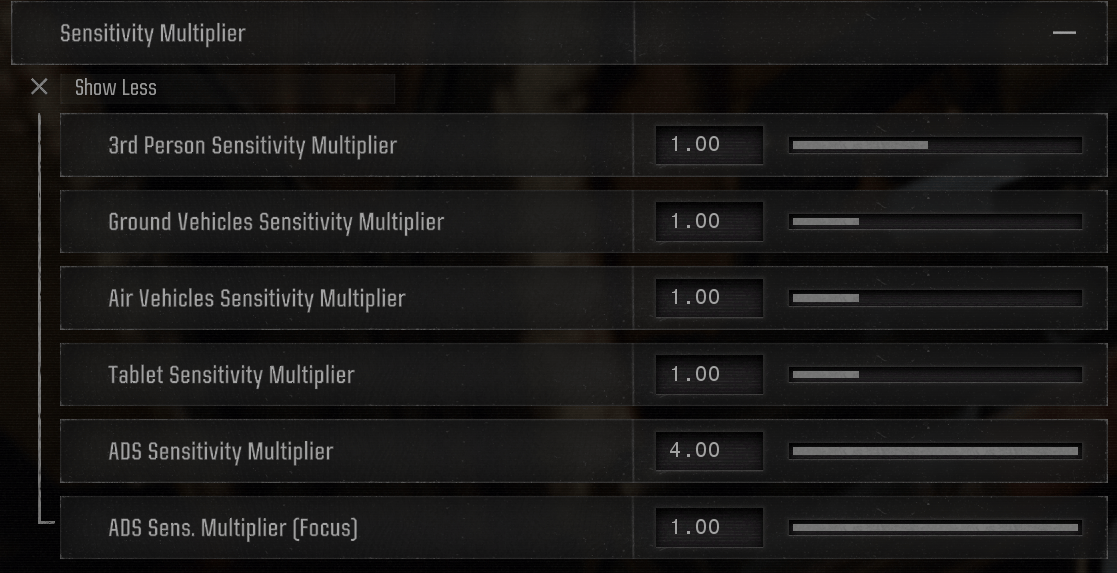
Change your horizontal and vertical stick sensitivities and ADS multiplier to suit your play style. Examples can be seen below.

- 6
Set your ADS multiplier to taste — see the example below.
- 7
To enable the controller, use F12 on your keyboard.
- 8
To disable the controller and unlock your mouse, press F12 again. We strongly recommend you use the firing range to tweak your in-game and ADS sensitivity settings first.
Sensitivity Adjustment
There are several options for sensitivity adjustment in Eazy Mapper.
- 1
In-game (MW2 / MW3 / BO6): go into the Settings and select Controller. From here, you can adjust the horizontal and vertical sensitivity along with the ADS sensitivity multiplier. These settings work together with the sensitivity settings in the Eazy Mapper app.
- 2
Eazy Mapper app: you can increase or decrease your sensitivity in three places. Use these settings if you cannot achieve your desired sensitivity using the in-game settings. To live-reload Eazy Mapper changes, press F5 on your keyboard.
- 3
General Sensitivity is your sensitivity when moving around, such as walking or sprinting. Simply adjust the slider to increase or decrease the sensitivity.
- 4
ADS Sensitivity is your sensitivity when aiming down sights. Quickly adjust this by using the slider to increase or decrease your sensitivity.
- 5
ADS Amplifier: if you feel very small mouse movements are not being picked up on the controller, increase the ADS amplifier slider.
In-Game Movement Feels Strange
- 1
Your movement in game will feel as though you are natively using a controller. Adjust your sensitivity settings to get a mouse-and-keyboard feel that suits your needs.
- 2
Additionally, if you find in game you are stuck running forward, please run the game in windowed mode.
Open a ticket and the team will get you sorted.