Aim Assist Plus guide
Lock onto targets in Call of Duty — set up speed, colours and controller for Warzone, Black Ops and Zombies.
Getting Started - Setup Guide
Before you start Call of Duty make sure the following settings in the Aim Assist Plus app have been set.
- 1
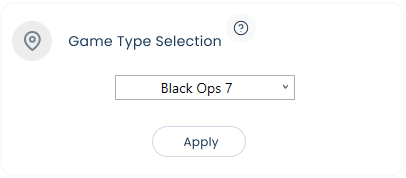
Select the game type from the dropdown in the option menu. Once done click Apply.
- 2
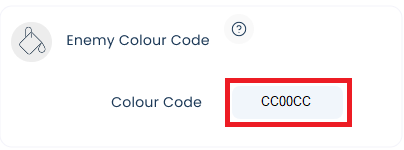
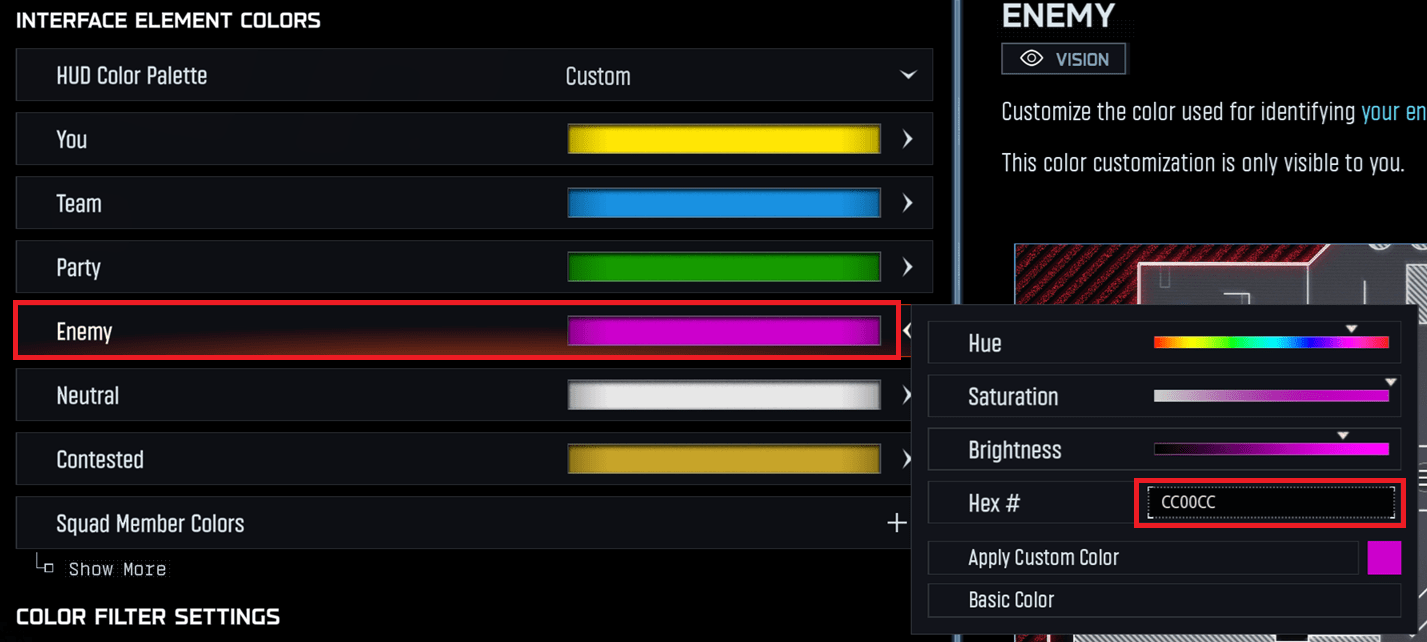
Set the enemy colour code to match what you have set in game. By default the app is set to use code FF0000, however for Black Ops 7 we recommend using CC00CC.
- 3
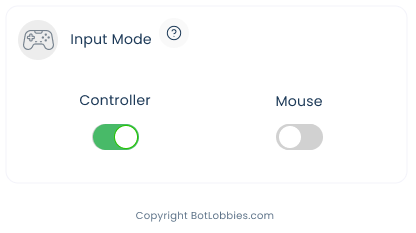
Next you need to select either Controller or Mouse from the Input Mode option. If you are using controller, make sure the controller is connected before starting the app.
- 4
Power on the Aim Assist Plus app and then load Call of Duty. When in game, ensure you have your display settings set to either Full Screen Borderless or Windowed Mode in game.
- 5
Next you need to set the correct enemy colour code in the game options. Go to Settings → search for "Color Customization" → click on "Enemy" and change the HEX# code to CC00CC or a colour code of your choice. Then click Apply Custom Color.
- 6
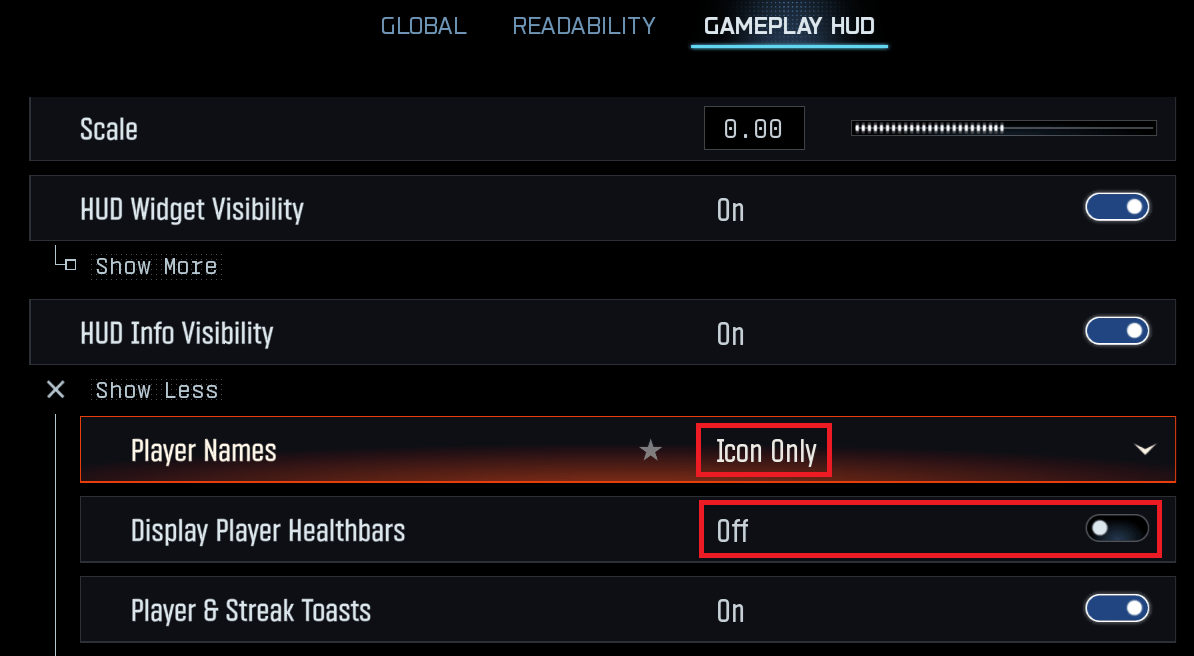
Next you need to change the Gameplay HUD options. Go to Interface → Gameplay HUD → click Show more under HUD Info Visibility, then change Player Names to Icon Only, and disable Display Player Healthbars.
Warzone Requirements
For Warzone you must have the tracker perk enabled on your loadouts. You must also set the game mode in our app to Warzone.
Zombies Requirements
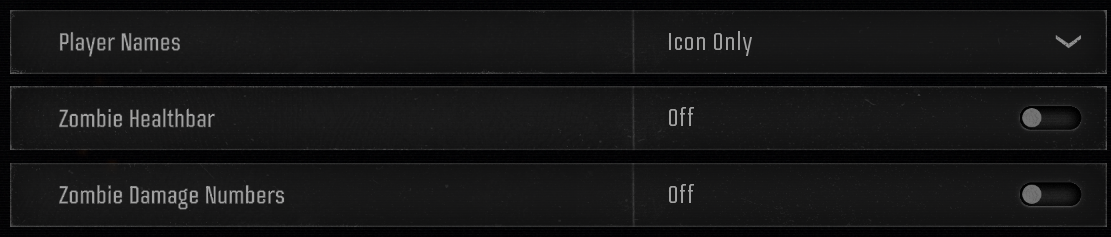
For the Zombies game mode you must set up the following in addition to setting the game mode to Zombies in our app.
- 1
Go to Settings → Interface → Gameplay HUD.
- 2
Continue adjusting the Gameplay HUD options as shown.

- 3
Go to Settings → Interface → Readability.

How Do I Change the Aim Assist Speed?
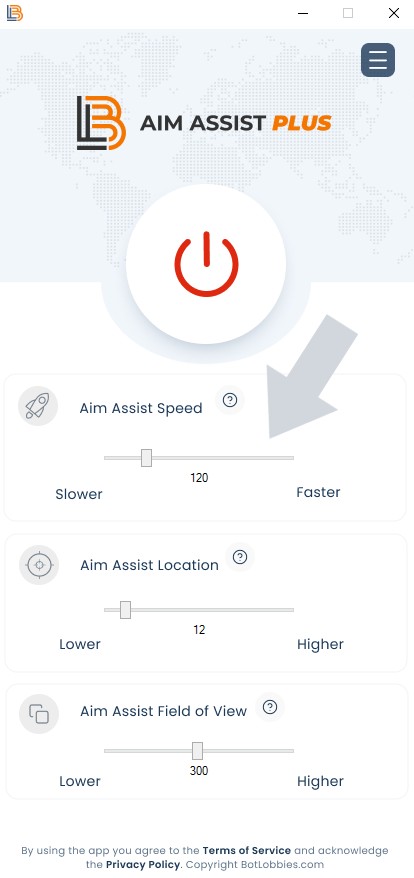
You can change the aim assist strength by simply moving the slider to the right.
- 1
Please note when the speed is changed you can press F12 on your keyboard to update the values automatically when in game.
My Weapon Is Shooting Too High or Low?
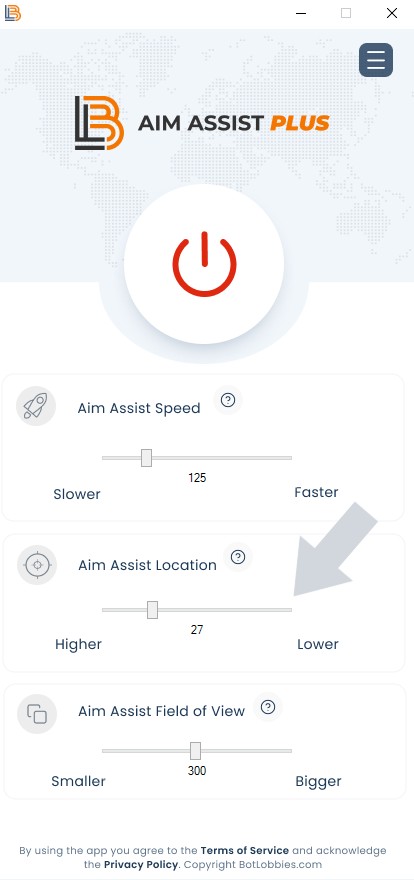
If your weapon is shooting too high or low when tracking and firing at an enemy player, you can adjust this by using the Aim Assist Location slider.
- 1
To make your weapon shoot lower, simply move the slider to the right. To make your weapon shoot higher, move the slider to the left. You can live update the setting by pressing F12 on your keyboard.
- 2
Please note both Warzone and multiplayer will require different aim assist locations.
I Don't Seem to Be Getting Much Aim Assistance?
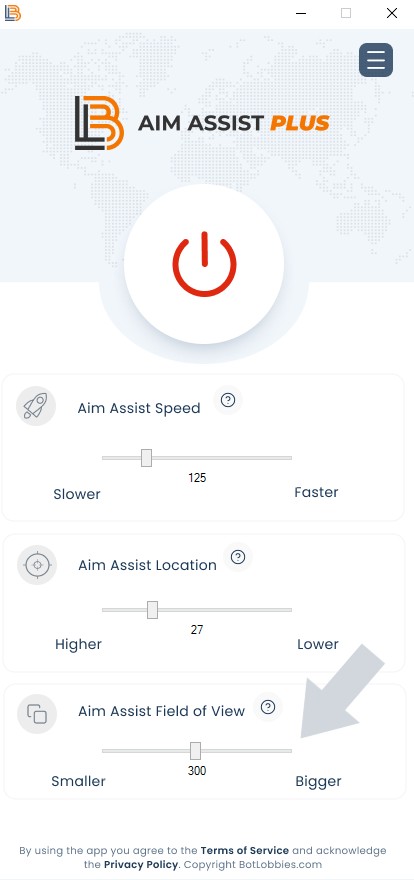
If you feel you are not getting much aim assistance, it is likely you need to adjust your Aim Assist Field of View (FOV). Increasing the view can increase the aim assist for short to medium range engagements with enemy. You can adjust your Aim Assist Field of View by adjusting the slider to the right, which increases the field, or move it to the left to reduce it.
Adjust the Aim Assist Field of View slider to the right to increase the field, or to the left to reduce it.
How Do I Set Up My Controller?
To enable controller support simply enter the settings page and click the **Controller** switch then power on the app.
Enter the settings page, click the Controller switch, then power on the app.
Open a ticket and the team will get you sorted.